How to blur a face in a video with Claude Code
Blurring a fixed box takes one ffmpeg command, and it works until the person moves or the shot changes. This guide hides one of two people in a 40-second interview with three shots: Claude Code finds every face in every frame, picks the interviewer by the colour of her shirt, follows her from shot to shot, and makes a blurred and a pixelated version to compare. Every command, number and frame below comes from that run.
Published:
What we're working with
40 seconds, from 2:24 to 3:04, of “Interview on extreme weather with physical geographer Hannah Cloke” by the Royal Society, released under CC BY 3.0, which lets you cut it, change it and repost it with credit to the Royal Society, a link to the license, and a note that it was changed. It's 1920 × 1080 at 25 frames per second, so 1,000 frames.
Two people are in it: Hannah Cloke, and an interviewer in a yellow shirt. The goal is to hide the interviewer's face and leave Hannah's as it is. The clip has three cuts: Hannah close up, a wide shot of both, the interviewer close up, then Hannah again.
Everything ran on a Mac with ffmpeg 9.0.2 from Homebrew and OpenCV 5.0.0 through uv. The commands, outputs and images below are from that run.
What you need
A Mac with Homebrew, Claude Code signed in with your own account, and a folder with the video in it. Homebrew installs ffmpeg and uv, which runs Python scripts with the packages they need without setting up an environment:
brew install ffmpeg uvFinding faces takes a detector model. YuNet is a small face detector from the OpenCV project, released under the MIT license, about 230 KB:
curl -L -o face_detection_yunet_2023mar.onnx "https://github.com/opencv/opencv_zoo/raw/main/models/face_detection_yunet/face_detection_yunet_2023mar.onnx"1. Cut the clip and find the shots
First the part of the interview to work on, encoded again so it starts cleanly on a frame:
Claude Code
Cut interview.webm from 2:24 to 3:04 into clip.mp4, then tell me where the shot changes.
ffmpeg -ss 144 -to 184 -i interview.webm -c:v libx264 -crf 18 -preset medium -pix_fmt yuv420p -c:a aac -b:a 160k -movflags +faststart clip.mp4ffmpeg -nostats -i clip.mp4 -an -vf "select='gt(scene,0.3)',metadata=print:file=-" -f null - 2>/dev/null | grep pts_timeframe:0 pts:43520 pts_time:3.4 frame:1 pts:354304 pts_time:27.68 frame:2 pts:476672 pts_time:37.24
The scene filter scores how much each frame differs from the one before, and select keeps those above 0.3. At 25 frames per second, the cuts are at frames 85, 692 and 931. Those numbers come back in step 4: when the shot changes, a person can jump to the other side of the frame, and anything that follows them has to start over.
2. The quick way: a fixed box
If what you're hiding doesn't move, like a parked car's plate or a screen in a static shot, a fixed box is all it takes. ffmpeg crops the box, blurs it, and lays it back on top. The box below is where the interviewer's face is in the wide shot:
ffmpeg -i clip.mp4 -filter_complex "[0:v]crop=100:160:484:220,boxblur=20:3[face];[0:v][face]overlay=484:220" \ -c:v libx264 -crf 18 -pix_fmt yuv420p -c:a copy -movflags +faststart box.mp4crop=100:160:484:220 takes a 100 × 160 box with its corner 484 pixels from the left and 220 from the top, boxblur=20:3 blurs it three times with a radius of 20, and overlay puts it back in the same place. It holds in the wide shot, where she barely moves. In her close-up her face is somewhere else and fully visible, and in Hannah's shots a blurred patch sits on the shelf. A box that follows her has to know where her face is in each frame.
3. Find every face
Claude Code wrote a script that runs YuNet on every frame, saves each face's box and score to a file, and marks which face is above a yellow shirt:
Claude Code
Find the faces in every frame of clip.mp4 with YuNet and save them to faces.json. The person to hide wears a yellow shirt, so mark the face above yellow.
"""Find the faces in every frame of a video and mark the one wearing yellow.Usage: faces.py clip.mp4 faces.json"""import jsonimport sysimport cv2import numpy as npsrc, out = sys.argv[1], sys.argv[2]video = cv2.VideoCapture(src)width = int(video.get(cv2.CAP_PROP_FRAME_WIDTH))height = int(video.get(cv2.CAP_PROP_FRAME_HEIGHT))detector = cv2.FaceDetectorYN.create( "face_detection_yunet_2023mar.onnx", "", (width, height), score_threshold=0.6)def shirt(frame, x, y, w, h): """Median hue and saturation of the area under the face, where the shirt is.""" top, bottom = min(height, y + int(h * 1.3)), min(height, y + int(h * 2.3)) left, right = max(0, x), min(width, x + w) if bottom <= top or right <= left: return 0, 0 hsv = cv2.cvtColor(frame[top:bottom, left:right], cv2.COLOR_BGR2HSV) return int(np.median(hsv[..., 0])), int(np.median(hsv[..., 1]))frames = []while True: ok, frame = video.read() if not ok: break _, found = detector.detect(frame) faces = [] for face in found if found is not None else []: x, y, w, h = (int(v) for v in face[:4]) hue, sat = shirt(frame, x, y, w, h) faces.append( { "box": [x, y, w, h], "score": round(float(face[14]), 2), "yellow": 20 <= hue <= 35 and sat >= 100, } ) frames.append(faces)json.dump({"width": width, "height": height, "frames": frames}, open(out, "w"))counts = {}for faces in frames: key = (len(faces), sum(f["yellow"] for f in faces)) counts[key] = counts.get(key, 0) + 1print(f"{len(frames)} frames")for (n, yellow), count in sorted(counts.items()): print(f" {count:4} frames: {n} face(s), {yellow} in yellow")uv run --with opencv-python-headless faces.py clip.mp4 faces.json1000 frames
158 frames: 1 face(s), 0 in yellow
177 frames: 1 face(s), 1 in yellow
3 frames: 2 face(s), 0 in yellow
481 frames: 2 face(s), 1 in yellow
3 frames: 2 face(s), 2 in yellow
178 frames: 3 face(s), 1 in yellowIt took 22 seconds for 1,000 frames. In HSV colour, hue says which colour a pixel is and saturation how strong it is. The script takes the area a little below each face, where a shirt would be, and counts the face as yellow when the median hue is between 20 and 35 on OpenCV's 0 to 179 scale and the saturation is at least 100. Hannah's white T-shirt and the blue wall don't pass; the yellow shirt does.
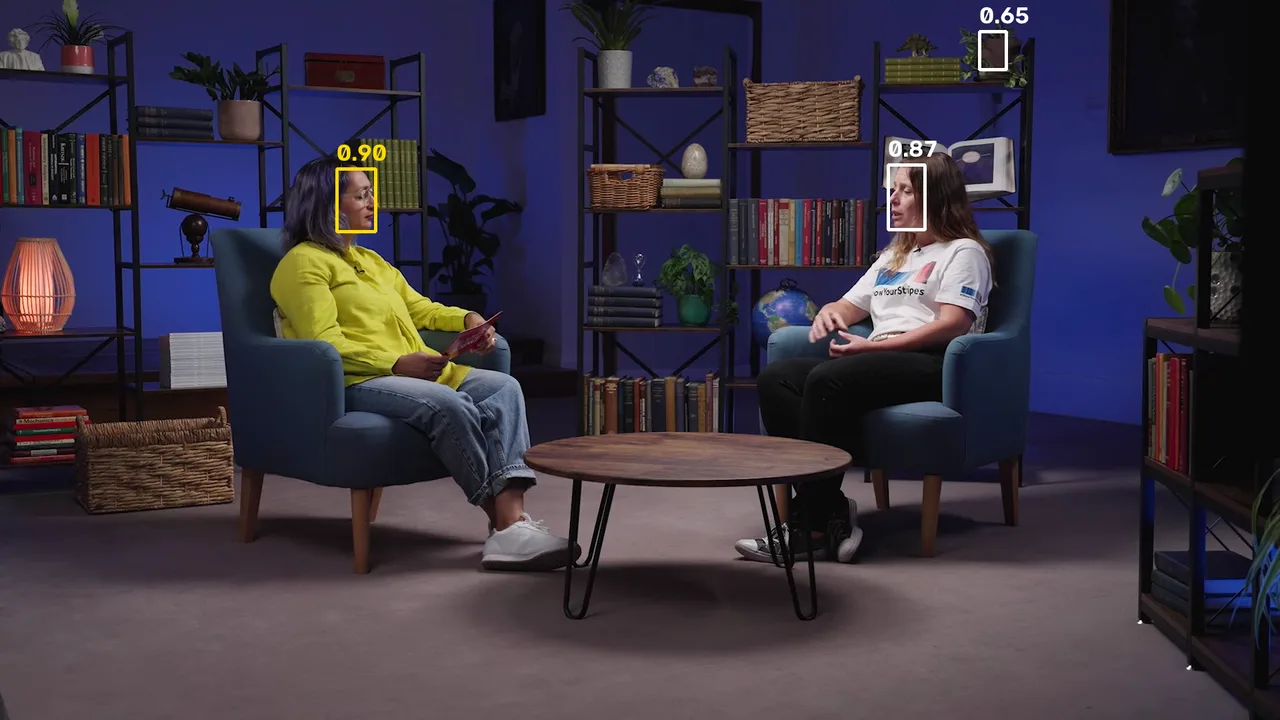
The count shows the detector isn't exact. 178 frames have three faces, and the third is a shape on the shelf that looks enough like a face to score 0.65. 3 frames have no one in yellow while two faces were found, and 3 have two in yellow. That's why the next step doesn't take the yellow face blindly in each frame but follows one face over time.
4. Follow her and hide the face
The second script reads faces.json, picks one box per frame, and draws the cover. In each frame it takes the face in yellow nearest to where she was in the frame before. If no face in yellow was found, it keeps the last box for up to 12 frames, half a second, so a frame the detector missed doesn't flash her face. At each cut it forgets where she was. Each box is averaged with two frames on either side so the cover doesn't jitter, grown by 35% on every side so the hair and edges of the face are covered too, and then blurred or pixelated:
Claude Code
Hide the face in yellow in clip.mp4 using faces.json, as blur.mp4 and pixelate.mp4. Follow her from frame to frame, keep the box for a moment if she's not found, and don't carry the box across the cuts at 85, 692 and 931.
"""Hide the face in yellow: follow it through faces.json and blur or pixelate it.Usage: hide.py clip.mp4 faces.json blur|pixelate out.mp4 85,692,931The last argument is the frames where the shot changes; a box never carries across one."""import jsonimport subprocessimport sysimport cv2import numpy as npsrc, faces_path, style, out = sys.argv[1:5]cuts = {int(f) for f in sys.argv[5].split(",")}data = json.load(open(faces_path))width, height = data["width"], data["height"]HOLD = 12 # frames to keep the last box when the face isn't foundPAD = 0.35 # grow the box by this much of its size on every sideSMOOTH = 2 # average each box with this many frames on either sidedef center(box): x, y, w, h = box return x + w / 2, y + h / 2# 1. Pick the face in yellow in each frame, nearest to where it was before.track, last, missed, held = [], None, 0, 0for i, faces in enumerate(data["frames"]): if i in cuts: last = None yellow = [f["box"] for f in faces if f["yellow"]] if last is not None and yellow: lx, ly = center(last) yellow.sort(key=lambda b: (center(b)[0] - lx) ** 2 + (center(b)[1] - ly) ** 2) if yellow: last, missed = yellow[0], 0 elif last is not None and missed < HOLD: missed += 1 held += 1 else: last = None track.append(last)# 2. Smooth the boxes so the cover doesn't jitter, without crossing a cut.smoothed = []for i, box in enumerate(track): if box is None: smoothed.append(None) continue lo = max([0] + [c for c in cuts if c <= i]) hi = min([len(track)] + [c for c in cuts if c > i]) near = [b for b in track[max(lo, i - SMOOTH) : min(hi, i + SMOOTH + 1)] if b is not None] smoothed.append([sum(b[k] for b in near) / len(near) for k in range(4)])covered = sum(b is not None for b in smoothed)print(f"{covered} of {len(smoothed)} frames covered, {held} held from the frame before")def hide(frame, box): x, y, w, h = box x0, y0 = max(0, int(x - w * PAD)), max(0, int(y - h * PAD)) x1, y1 = min(width, int(x + w * (1 + PAD))), min(height, int(y + h * (1 + PAD))) region = frame[y0:y1, x0:x1] rw, rh = x1 - x0, y1 - y0 if style == "pixelate": cells = 8 # blocks across the face, whatever its size small = cv2.resize(region, (cells, max(1, rh * cells // rw)), interpolation=cv2.INTER_AREA) frame[y0:y1, x0:x1] = cv2.resize(small, (rw, rh), interpolation=cv2.INTER_NEAREST) return k = max(3, (rw // 2) | 1) blurred = cv2.GaussianBlur(region, (k, k), 0) mask = np.zeros((rh, rw), np.float32) cv2.ellipse(mask, (rw // 2, rh // 2), (rw // 2, rh // 2), 0, 0, 360, 1.0, -1) mask = cv2.GaussianBlur(mask, (0, 0), rw / 20)[..., None] frame[y0:y1, x0:x1] = (blurred * mask + region * (1 - mask)).astype(np.uint8)# 3. Draw each frame and hand it to ffmpeg, which adds the original sound.encoder = subprocess.Popen( ["ffmpeg", "-v", "error", "-y", "-f", "rawvideo", "-pix_fmt", "bgr24", "-s", f"{width}x{height}", "-r", "25", "-i", "-", "-i", src, "-map", "0:v", "-map", "1:a", "-c:v", "libx264", "-crf", "18", "-pix_fmt", "yuv420p", "-c:a", "copy", "-movflags", "+faststart", out], stdin=subprocess.PIPE,)video = cv2.VideoCapture(src)for box in smoothed: ok, frame = video.read() if not ok: break if box is not None: hide(frame, box) encoder.stdin.write(frame.tobytes())encoder.stdin.close()encoder.wait()for style in blur pixelate; do uv run --with opencv-python-headless hide.py clip.mp4 faces.json $style $style.mp4 85,692,931done846 of 1000 frames covered, 7 held from the frame before 846 of 1000 frames covered, 7 held from the frame before
846 frames are covered: 607 in the wide shot and 239 in her close-up, the two shots she's in. 7 of those are held boxes, frames where the detector didn't find her. Each version took about 6 seconds. The frames go straight from OpenCV to ffmpeg through a pipe, and ffmpeg adds the original sound back without encoding it again.
The first run had two mistakes worth knowing about. Before the cuts were given to the script, the held box carried 12 frames past the cut into Hannah's close-up and blurred part of her face. And the first blur, a third of the box's width, left the lips clear enough to read; half the width hides them.
5. Check every shot
A cover that's right in one frame can still slip in another, so the check is to look at many frames at once. Claude Code put every tenth frame of the close-up on one sheet:
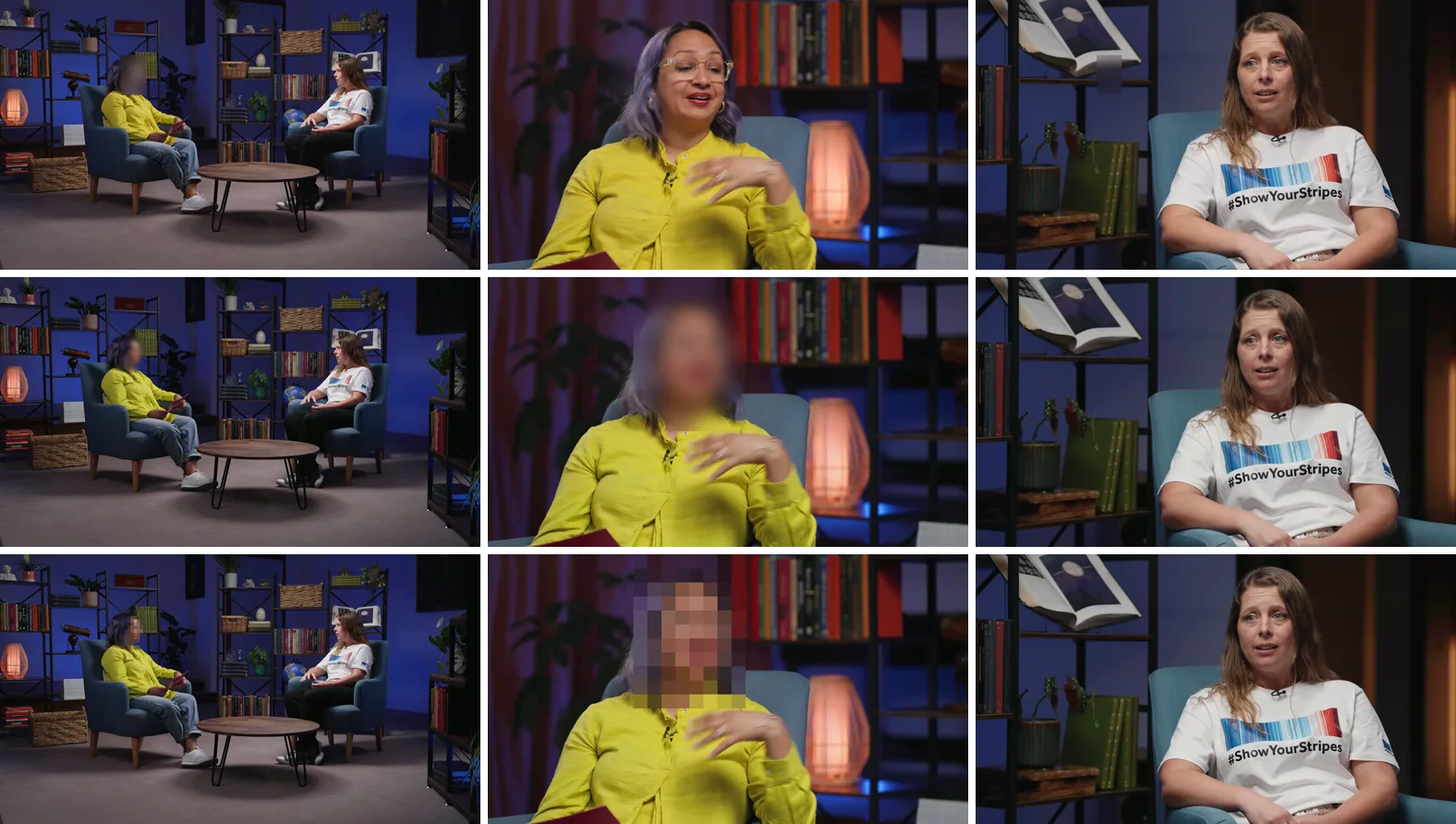
ffmpeg -v error -i blur.mp4 -vf "select='between(n,692,930)*not(mod(n-692,10))',scale=320:-2,tile=6x4" -frames:v 1 -fps_mode vfr close-tiles.pngAll 24 frames on the sheet had her face covered. The same with every 26th frame of the wide shot, and both of Hannah's shots were checked to have nothing on them. Here are the three versions side by side in each shot:
6. Blur or pixelate
Both versions come from the same boxes, so the only difference is how the face is hidden. Here's the pixelated one:
The blur fades out at the edge of an oval, so it reads as softness and stays in the background. The pixelation is a hard-edged block of squares that says plainly something was hidden. Its blocks are counted across the face, 8 of them, instead of set in pixels: the first try used 12-pixel blocks, which hid the face in the wide shot but left it readable in the close-up, where the face is several times bigger. Which one fits is a choice about the video; with both made, you can watch them side by side and pick.
7. Credit the footage
CC BY asks for the title, the creator, a link to the license, and a note that it was changed. Hiding a face is a change, so say so:
Footage: "Interview on extreme weather with physical geographer Hannah Cloke" by the Royal Society, CC BY 3.0, cut, and the interviewer's face blurredLicense: https://creativecommons.org/licenses/by/3.0/Where it gets hard
A detector finds faces it can see. A face in profile, turned away, very small, or behind a hand can drop out for longer than the half-second hold, and then it shows. When hiding someone matters, look at every frame of every shot they're in, not a sample, and fix the gaps by hand. Making the cover bigger and holding it longer is the safe side of the trade.
Hiding a face doesn't make someone anonymous. Here the interviewer is still heard asking her question, and a voice, a shirt, a name in the captions or a place in the background can identify a person too. A weak blur can also be undone well enough to recognise someone, so make it strong. If the video is going on YouTube, YouTube Studio has a face blur in its editor on a computer that finds faces and follows the ones you pick; once the change is saved, it can't be reverted to the original there, so keep your own copy.
Cutfac is a Mac app we make for videos like this. It runs Claude Code or Codex for each video, lets you select a range or draw a box on the frame and say what to change, and keeps versions side by side to compare and pick from. You can do everything in this guide without it.
Sources
- Wikimedia Commons: Interview on extreme weather with physical geographer Hannah Cloke – The Royal Society (CC BY 3.0)
- Creative Commons: Attribution 3.0 Unported (CC BY 3.0)
- Claude Code overview
- Homebrew: ffmpeg
- FFmpeg filters: select, crop, boxblur and overlay
- uv: Running scripts
- opencv-python-headless on PyPI (Apache 2.0 license)
- OpenCV Zoo: YuNet face detection model (MIT license)
- OpenCV: FaceDetectorYN class reference
- YouTube Help: Blur your videos
Questions
If the face stays in one place, crop that box, blur it and lay it back on top: ffmpeg -i in.mp4 -filter_complex "[0:v]crop=100:160:484:220,boxblur=20:3[face];[0:v][face]overlay=484:220" -c:a copy out.mp4. If it moves, you need the face's position in every frame, which takes a face detector like OpenCV's YuNet.
Run a face detector on every frame, follow the same face from frame to frame by picking the box nearest to the last one, keep the box for a few frames when the detector misses, and start over at each cut. Then blur that box in each frame. In this guide that covered 846 of 1,000 frames, every frame the person was on screen.
Find all the faces, then tell the one you want by something that doesn't change, like where they sit or what they wear. Here the person to hide wore a yellow shirt, so the script checked the colour under each face.
Either hides the face if it's strong enough. A blur is softer and stays in the background; pixelation shows plainly that something was hidden. Set pixelation by blocks across the face, not by pixels, or a close-up can stay readable.
Yes. In YouTube Studio on a computer, the editor has a blur tool with face blur, which finds faces in the video and blurs the ones you pick. It's only for videos on YouTube, and a saved change can't be reverted to the original there.
Not on its own. A voice, clothes, a name or a place can still identify someone, and a weak blur can be recognisable. Check every frame they're in, make the cover strong, and think about what else gives them away.